


Stop studying English. Start acquiring it.

You already pulled off the impossible once. As a child — with no grammar book, no flashcards, no exams — you absorbed an entire language: thousands of words, every sound, every rhythm, just by living inside it. iconRead is built to let that same quiet magic happen again, in English.

The science: Krashen's quiet revolution

Linguist Stephen Krashen spent decades proving what most classrooms still ignore: we don't learn a language by memorizing rules — we acquire it by understanding messages we actually care about. He called the engine comprehensible input: when you understand language just a step beyond your current level (he wrote it i + 1), your brain builds the language for you, silently, with no drilling required.

Two of his ideas sit at the heart of iconRead:

  • Comprehensible input. Acquisition happens when input is understood. The goal isn't to water English down — it's to make real English understandable, one word at a time.
  • The affective filter. Anxiety, boredom, and the fear of being wrong raise a wall that blocks acquisition. Curiosity and enjoyment tear it down — so the input has to be compelling, something you genuinely want to watch.

Why pictures? Your brain keeps two copies

There's a second engine under the hood, and it's the reason for the icon in iconRead. Psychologists call it dual coding: a word stored only as a translation is one fragile trace, but a word fused to an image is stored twice — once as language, once as a picture — and each copy can revive the other. That's why you can forget a definition you copied ten times, yet never forget what umbrella looks like in the rain.

So iconRead never asks you to route English through your first language. Long-press a word and you see it (a gallery of images), hear it (native pronunciation), and read it (the dictionary sense) — in the same breath, without leaving the story. Meaning attaches directly to English, the way it attached to your mother tongue.

The unfair advantage of frequency

Here's the best-kept secret in vocabulary research: English words are wildly unequal. The most common ~3,000 word families do the heavy lifting in roughly 95% of everyday speech. Master those, and comprehension snowballs — every new sentence teaches you the rare words for free, from context.

iconRead is built around that curve. Its vocabulary dial knows how common every word is: set it to your level and the app quietly ignores what you already know, aims its picture-boxes at the words just beyond you — your personal i + 1 — and re-tunes the whole experience every time you grow. Tell it a word is yours (flag it orange) and it never wastes your attention on it again.

Turn anything you love into a lesson

Input only works if you actually want it. So iconRead turns your content into living, tappable reading:

  • Any YouTube video — paste a link, get word-synced subtitles you can read like a book.
  • Any text — paste an article, a chapter, song lyrics — and read it with pictures, or let the built-in narrator read it to you while every spoken word lights up.
  • Any photo of a page — snap a menu, a sign, a paperback. iconRead reads the picture and rebuilds it as a lesson.
  • Your own voice — talk, and your speech becomes a text you can study. Reading your own words in English is strangely addictive.

And because one word can mean five things, iconRead's sense-detection (the little WSD badge) reads the story the way you do — so by the river you get the river bank, not the one with ATMs.

Vocabulary that sticks — because you lived it

You won't memorize these words. You'll meet them — in context, fused to an image, a voice, and a moment in a story you cared about — and meet them again a video later, which is exactly the spaced re-encounter memory feeds on. The My Learned Words tab keeps the receipts: every word you've ever looked up, how many times you've met it, and which ones you've already claimed as yours. Watching that list grow is watching yourself acquire a language.

Open a video. Hold your finger on a strange word. Let your brain do what it was built to do.
别再"学"英语了,开始"习得"它。

回想一下:你的母语,是靠背语法、做习题学会的吗?不是。你是在一个个画面、一声声呼唤、一段段真实的情景里,自然而然地"长"出了它。iconRead 想让同样的奇迹,在英语上重演一次。

十二年英语,为什么还是开不了口?

传统的应试英语,把一门活生生的语言,肢解成了语法点、时态表和选择题。我们把最多的时间,花在了最没用的地方——抠语法、背规则、刷真题——结果练出一身"哑巴英语":卷子上会做,嘴巴上发懵;单词背了又忘、忘了又背。不是你不够拼,是这套方法,从第一天起就指错了方向。

克拉申给出的答案:可理解输入

语言学家 Stephen Krashen(克拉申) 用几十年的研究证明了一件事:语言不是"学"会的,是"习得"的。当你接触到能听懂、又恰好略高于现有水平的内容(他写作 i + 1)时,大脑会在你毫无察觉之间,自己把这门语言搭建起来——根本不必去背语法。它只有两个前提:内容要看得懂,而且你是真的想看——焦虑和无聊会竖起一道"情感过滤"的墙,把输入挡在门外;好奇与享受才能把墙拆掉。

为什么用图片?因为大脑会存两份

iconRead 名字里的 icon(图像),来自认知心理学的双重编码理论:只靠中文翻译记住的单词,是一条孤零零、容易断的线索;而与画面绑在一起的单词,会在大脑里存下两份记忆——一份是语言,一份是图像,哪一份淡了,另一份都能把它唤醒。你会忘掉抄了十遍的释义,却永远忘不了雨中那把伞的样子。

所以在 iconRead 里,英语从不绕道中文。长按一个生词,你在同一秒里:

  • 👁️ 看见它:一组图片直接告诉你这个词"是什么",意义一眼入心。
  • 🔊 听见它:地道发音响起,声音与含义被牢牢焊在一起。
  • 🔤 读到它:拼写、释义与画面,在同一个瞬间扣合。
  • 玩起来:滑动、放大、对照——你是在互动中"玩"会一个词,而不是在抄写中把它忘掉。

一个生词,于是不再是一堵墙,而成了一扇窗。视频始终看得懂,心理负担始终很轻,输入便源源不断地流进来——而这,正是"习得"发生的时刻。

词频:学英语最划算的一笔账

词汇研究里有个少有人讲的秘密:英语单词的地位极不平等。最常用的约 3000 个词族,撑起了日常口语约 95% 的内容。先拿下这三千,理解力就会滚雪球——剩下的生僻词,语境会免费教给你。

iconRead 整个就是围着这条曲线造的。它知道每个词有多常用:把词汇量旋钮调到你的水平,App 就会自动略过你已认识的词,把图片框对准那些"再踮一下脚就够得着"的词——你专属的 i + 1——并随着你的成长随时重新校准。哪个词你已掌握,标成橙色,它就再也不来消耗你的注意力。

把你喜欢的一切,都变成教材

输入只有"想看"才有效。所以 iconRead 让你的内容开口教你:

  • 任何 YouTube 视频——粘贴一个链接,就得到逐词同步的字幕,像读书一样去"读"视频。
  • 任何文本——一篇文章、一章小说、一首歌词,贴进来就是带图阅读页;还能让内置朗读替你读,读到哪个词,哪个词就亮起来。
  • 任何一张带字的照片——菜单、路牌、书页,拍下来,iconRead 会"读"出照片里的文字,重建成一课。
  • 你自己的声音——开口说,语音自动变成可点、可查的英文文本。研读自己亲口说出的英语,出奇地上瘾。

一词多义怎么办?iconRead 的语义判别(卡片上的 WSD 徽章)会像你一样读上下文——在河边给你"河岸"的 bank,而不是取钱的那个。

单词为什么记得牢?因为你"经历"过它

你不是在背单词,你是在一帧帧画面、一声声发音里遇见它们——并且在下一个视频里恰到好处地重逢,这正是记忆最需要的间隔回访。My Learned Words(我学过的词)替你记着账:每一个你查过的词、遇见过几次、哪些已收入囊中。看着这张表一天天变长,就是亲眼看着自己长出一门语言。

打开一个视频,把手指按在一个生词上——剩下的,交给你的大脑。

How to use iconRead

iconRead turns videos, texts, photos — even your own voice — into picture-supported reading. This page is the complete manual: every tab, button, dial and gesture, in the order you'll meet them.

1. Try it in 60 seconds

No account needed: open the Demo Video Post tab and play with the reader — every tap and toggle works, it just isn't saved. When you're ready to keep your progress, hit Register (top-right) and sign up with your email (you'll get a confirmation link) or continue with Google or Apple. One habit to know: iconRead runs in one browser tab at a time — if you see the "already open in another tab" screen, just close the extra tab.

2. The home page

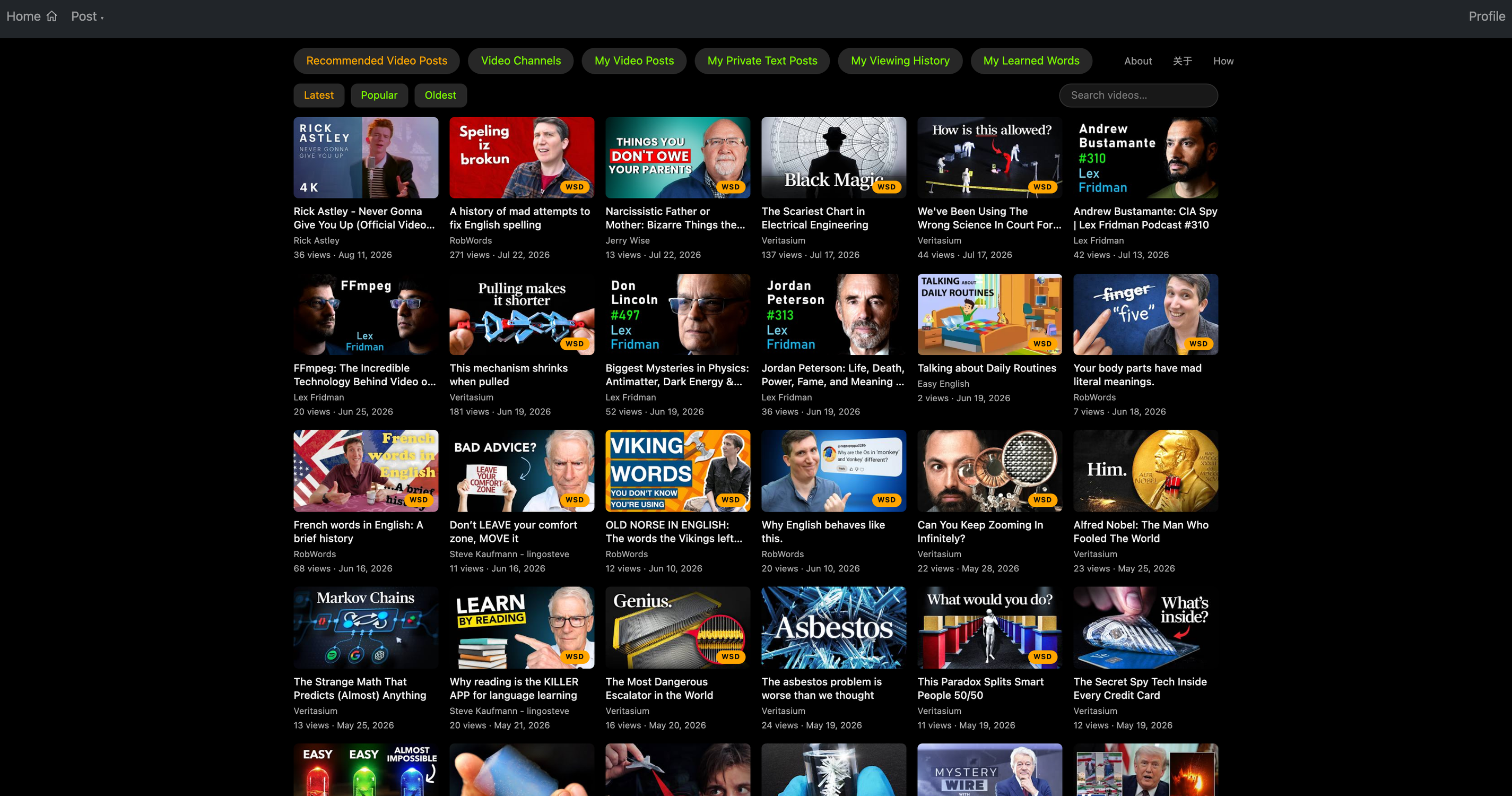
iconRead home page
The home page — section tabs across the top, cards below, endless scroll.

The tab bar is your map:

  • Recommended Video Posts — the public library. Sort with the Latest / Popular / Oldest chips, or type in the search box to filter by title. Scroll and more cards load by themselves.
  • My Video Posts — videos you've posted. The extra Hidden chip lists cards you've hidden, each with a Restore menu to bring them back.
  • My Private Text Posts — your text, photo-text and voice posts. Private means exactly that: only you can open them.
  • My Viewing History — where you left off, newest first. Each card's ⋮ menu can remove the entry or hide the post itself.
  • My Learned Words — your personal dictionary-in-progress (see §8).

3. The reader

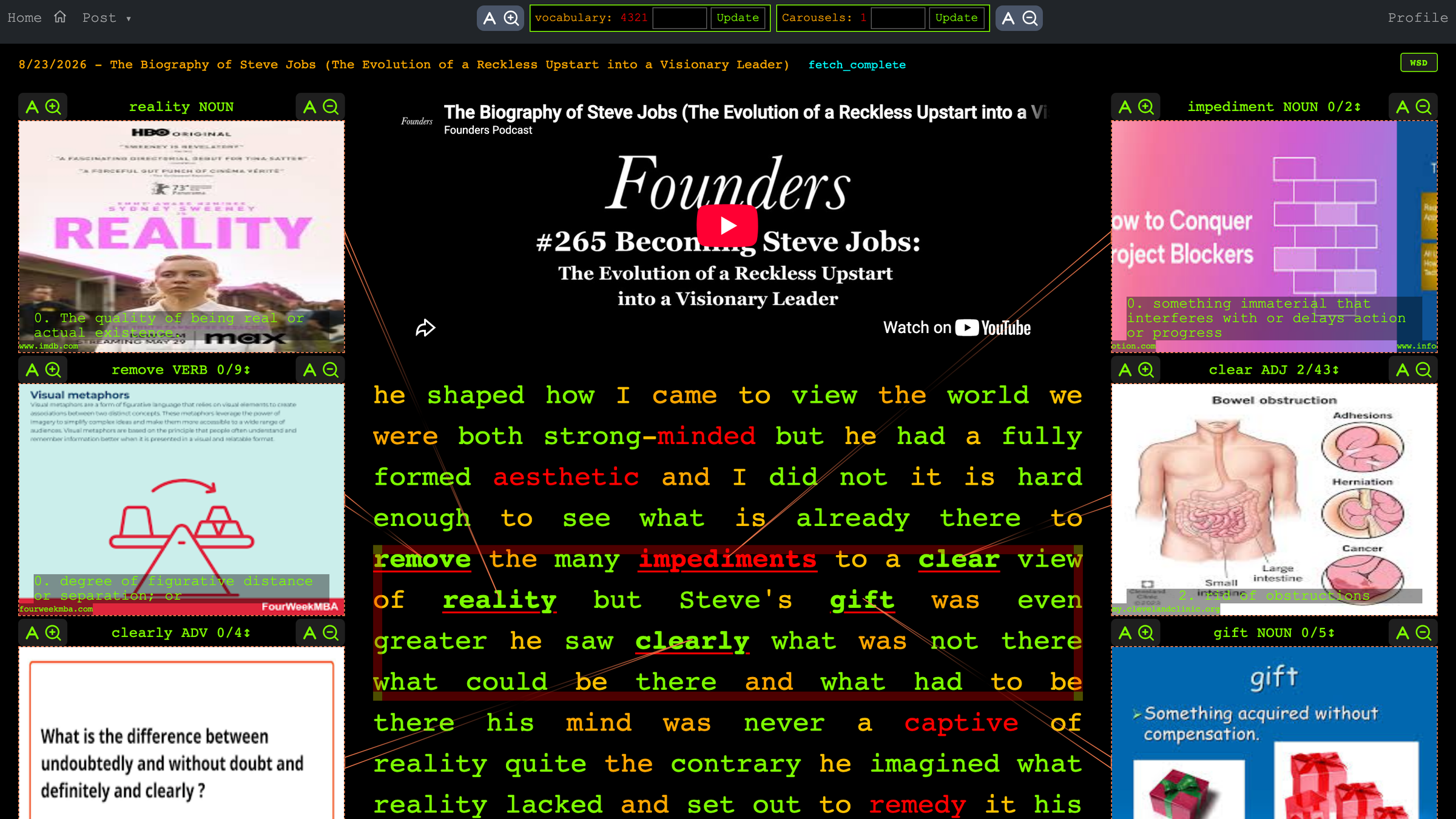
The reader: video, subtitles, word boxes and arrows
The reader: video up top, subtitles in the middle, picture "word boxes" linked by coral arrows.

Three layers share the screen:

  • The video — a normal player: play, pause, scrub.
  • The subtitles — they scroll in sync. Words are colour-coded by rarity at your vocabulary level, so your eye lands on the ones worth learning. Words you've flagged as known show orange.
  • The word boxes — every word inside the "trap" (§5) gets a box of meaning-pictures, tied to its word by an arrow.

Two gestures do almost everything:

  • Tap a word → the player jumps there and replays that line. Missed a sentence? Tap its first word and hear it again — instant, unlimited listening practice.
  • Hold a word (long-press, about half a second) → the meaning panel opens (§4). This is the "what does that mean?!" gesture.
Fullscreen mode
Fullscreen turns the reader into a focused, TV-style view — the subtitle panel floats over the video and stays draggable, and every gesture keeps working.

4. The meaning panel — see it, hear it, own it

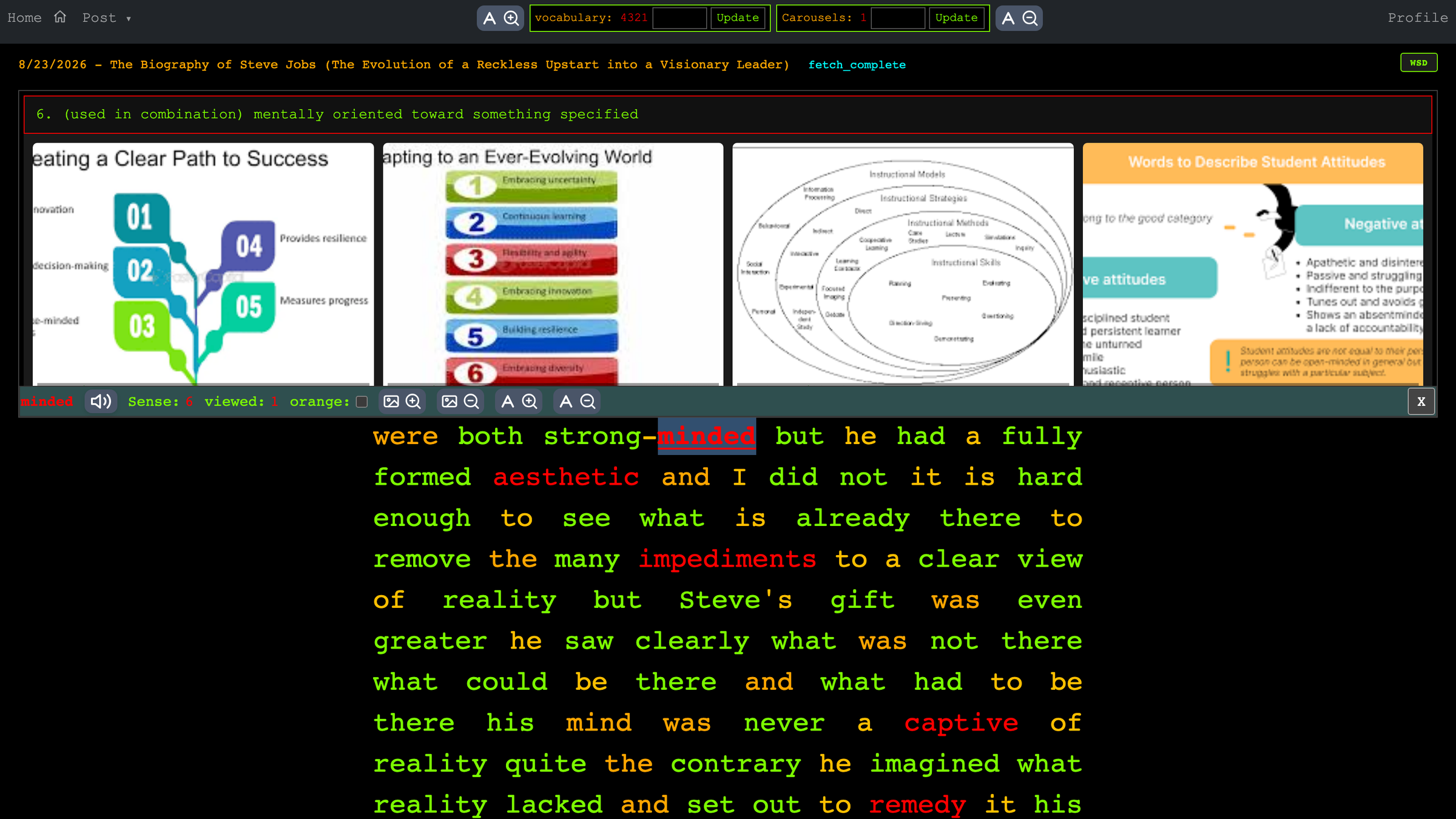
The meaning panel
Hold any subtitle word: pictures, pronunciation, definitions, and your learning controls.
  • Pictures — a gallery of what the word means. Swipe left/right for more images of a sense; swipe up/down to move between senses.
  • 🔊 Pronunciation — the speaker reads the word aloud so sound and meaning fuse.
  • viewed: — how many times you've held this word. It's your encounter counter, and it feeds the My Learned Words table.
  • orange — the "I've got this one" switch. Tick it and the word turns orange in the subtitles, stops being trapped into picture boxes, and stops spending your attention. Untick any time if it slips away.
  • Definition — the dictionary senses, numbered; the sense the story is actually using is what the pictures aim for.

5. The trap — aim the pictures

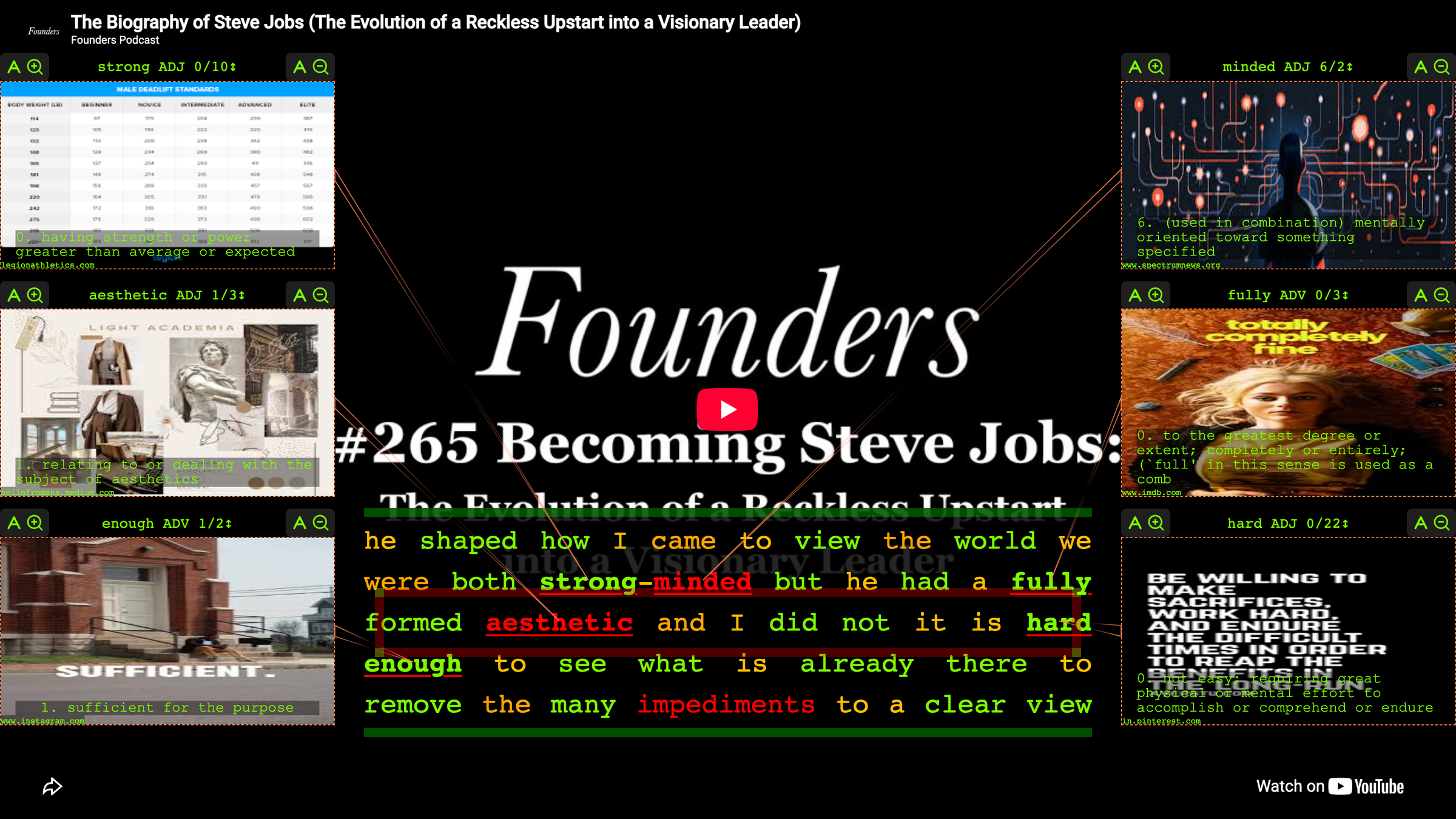
The framed window floating over the subtitles is the trap. Whatever falls inside it gets picture boxes and arrows. Drag it to a different line; drag its edges or corners to trap more or fewer words at once. As subtitles scroll, the boxes chase the words automatically. Think of it as a searchlight: park it where the unknown words are.

6. Word boxes — senses & images

Each box is a tiny two-way carousel: swipe up/down to flip through a word's senses (the title reads e.g. move VERB 2/3), swipe left/right to flip through images of that sense.

A word box title bar with A glasses
The small A glasses on a box's title bar resize just that box's caption text.

7. Dials and glasses — tune the machine

Anything resizable uses a magnifier "glass" — enlarges, shrinks — and the icon in front says what it resizes: A = text, photo icon = pictures.

Top navbar controls
Top bar on a post: A glasses resize the subtitle text; vocabulary and Carousels are the two learning dials.
  • vocabulary — the most important number in the app. It's your frequency rank: "treat the N most common English words as known". Start around 3000 (the everyday-English core). Too many boxes on words you know → raise it. Lost without help → lower it. The colour-coding and the trap both re-aim instantly. This is how you keep the input at i + 1.
  • Carousels — how many picture boxes may animate at once. Fewer = calmer screen; more = richer scaffolding.
Meaning-panel glasses
In the meaning panel: photo glasses resize the pictures, A glasses resize the definition text.

8. My Learned Words — watch yourself grow

Every word you've ever held lands in the My Learned Words tab: Word, Viewed (how many times you've met it), and Orange (a dot on the ones you've claimed as known). Click any column head to sort — most-viewed first is a beautiful portrait of what you've been wrestling with. It fills up by itself; all you did was read.

9. Post your own content — the Post menu

Post a YouTube video
Post ▾ → Video: paste a YouTube link and iconRead builds a reader out of it.

The Post ▾ menu (top-left, when logged in) is how anything becomes a lesson:

  • Video (uTube link) — paste any YouTube link. iconRead embeds the video and fetches word-timed subtitles. Public: it appears in Recommended for everyone.
  • Text (private) — paste any text: an article, a chapter, lyrics. It becomes a picture-supported reading page only you can see.
  • OCR Text (private) — upload a photo of text: a book page, a menu, a screenshot, a street sign. iconRead reads the picture and turns it into a text post, with the photo kept as its thumbnail.
  • Voice to Text (private) — record yourself (or a conversation, up to 30 minutes) and iconRead transcribes it into a readable, tappable post — with the recording attached, so the words light up as your own voice plays back.

OCR and Voice are metered (see §11) — the menu item turns orange when today's free run is used up, and clicking it then shows the Premium page.

10. Reading a text post — narration and sense-detection

Text, OCR and Voice posts open in the same reader, minus the video. Two buttons live in the post's info bar:

  • TTS — generate a natural-voice narration of the post. An audio bar appears where the video would be; as it plays, each spoken word lights up in the text, and tapping a word replays from there — your text becomes an audiobook with karaoke subtitles. Generating costs one daily run; replaying a finished narration is always free.
  • WSD — run word-sense disambiguation over the post. English words are shape-shifters ("bank", "bat", "spring"); WSD reads the context and locks each ambiguous word to the sense the story actually uses, so the pictures and definitions match the plot. Posts that have it show a small WSD badge on their card.

11. Free vs Premium

The AI services — OCR, Voice, TTS, WSD — cost real compute, so the free plan includes one run of each per day: a full daily study loop, forever free. Premium (Profile → Premium) raises every one of them to 10 a day (with a weekly allowance of 30 per service) — enough to digitize a chapter, narrate it, and disambiguate it all in one sitting. Cancel any time; watching videos and posting them is not metered at all.

12. Share iconRead — the partner programs

Profile → Partner program gives you a personal link and three ways to be rewarded when people you invite become active readers: Referrer (a one-time deal — 3 active sign-ups earns you a free month of Premium), Promoter (ongoing credit toward Premium for every active reader), or Marketer (real cash, paid via PayPal, admin-approved). One program at a time — you can end one and switch whenever you like.

13. Your account

Profile entry in the navbar
Top-right: your Profile card — settings, Premium, partner program, logout.

The Profile card (top-right) holds everything administrative: update your name and email, change your password, open Premium and the Partner program, log out — and, should you ever want it, delete your account permanently.

14. A 15-minute daily recipe

  • Pick a video you'd watch anyway — compelling beats educational.
  • Park the trap on the subtitle line, and tap-replay any sentence that got away.
  • Hold only the words that block understanding — you don't need every word, you need the message.
  • Flag words you know orange so the app aims at your true frontier.
  • End on My Learned Words, sorted by Viewed — your day's harvest, on one screen.

Fifteen focused minutes a day beats three heroic hours on Sunday — memory is built by returning, not by cramming.

That's every switch in the cockpit. Open the demo, hold a strange word, and you'll have the hang of it in a minute.

使用说明

iconRead 把视频、文本、照片——甚至你自己的声音——统统变成带图阅读。这一页是完整手册:每个标签、按钮、旋钮和手势,按你会遇到的顺序讲一遍。

1. 60 秒上手

不用注册:打开 Demo Video Post(演示)标签,直接把玩阅读器——所有点按都有效,只是不会保存。想保留进度时,点右上角 Register 注册:用邮箱(会收到确认邮件),或直接用 Google / Apple 登录。一个小习惯:iconRead 同一时刻只在一个浏览器标签页里运行——看到"已在其他标签页打开"的提示,把多余的标签页关掉即可。

2. 主页

iconRead 主页
主页——顶部是分区标签,下方是卡片,一直滚就一直加载。

顶部标签栏是你的地图:

  • Recommended Video Posts(推荐视频)——公共视频库。用 Latest / Popular / Oldest 排序,或在搜索框里按标题筛选;往下滚会自动加载更多。
  • My Video Posts(我的视频)——你发布的视频。多出的 Hidden 排序键列出你隐藏过的卡片,每张都有 Restore 菜单可以恢复。
  • My Private Text Posts(我的私人文本)——你的文本、拍照识别和语音帖。私人就是字面意思:只有你能打开。
  • My Viewing History(观看历史)——上次读到哪里,最新在前。每张卡片的 ⋮ 菜单可以删除这条记录,或隐藏那篇帖子。
  • My Learned Words(我学过的词)——你的"生长中的词典"(见第 8 节)。

3. 阅读器

阅读器:视频、字幕、单词框与连线
阅读器:上方是视频,中间是字幕,图片"单词框"由珊瑚色连线连回单词。

屏幕上同时有三层:

  • 视频——普通播放器:播放、暂停、拖进度。
  • 字幕——随视频同步滚动。单词按你的词汇量水平分色标记,目光自然落在值得学的词上;你标记为"已掌握"的词显示橙色
  • 单词框——落进"取词框"(第 5 节)的每个词,都得到一框释义图片,由连线指回原词。

两个手势包办一切:

  • 轻点一个词 → 播放器跳到那里重播这一句。哪句没听清?点它的第一个词,再听一遍——即时、无限次的听力练习。
  • 按住一个词(长按约半秒)→ 弹出释义面板(第 4 节)。这就是"这词啥意思?!"手势。
全屏模式
全屏把阅读器变成专注的"电视式"视图——字幕面板浮在视频之上、可以随手拖动,所有手势照常可用。

4. 释义面板——看见它、听见它、拿下它

释义面板
按住字幕里任意一个词:图片、发音、释义,以及你的学习控件。
  • 图片——展示词义的图库。左右滑看同一义项的更多图;上下滑在义项之间切换。
  • 🔊 发音——喇叭朗读这个词,声音与含义焊在一起。
  • viewed:——你按住过这个词多少次。这是你的"相遇计数器",直接汇入 My Learned Words 表。
  • orange——"这词我会了"开关。勾上,它在字幕里变橙色、不再被取进图片框、不再消耗你的注意力;哪天忘了再取消勾选即可。
  • 释义——按编号排列的词典义项;图片瞄准的,正是故事里实际使用的那个义项。

5. 取词框——给图片"瞄准"

字幕上那个带框的小窗口,就是取词框。落在里面的词才会出图片框和连线。拖动它换一句话;拖它的边或角一次取更多或更少的词。字幕滚动时,图片框自动追着框里的词跑。把它当探照灯用:哪里生词多,就停在哪里。

6. 单词框——义项与图片

每个框是一个小小的双向轮播:上下滑翻义项(标题显示如 move VERB 2/3),左右滑翻该义项的配图。

单词框标题栏上的 A 放大镜
框标题栏上那对小小的 A 放大镜,只调节这一个框的说明文字大小。

7. 旋钮与放大镜——调校这台机器

凡是能调大小的地方都是一对放大镜—— 放大、 缩小——镜片前的图标说明它调什么A = 文字,照片图标 = 图片。

顶栏控件
帖子页顶栏:A 放大镜调字幕文字;vocabularyCarousels 是两只学习旋钮。
  • vocabulary(词汇量)——全应用最重要的数字。它是词频档位:"把最常用的 N 个英语单词当作我已认识"。建议从 3000 起步(日常英语的核心圈)。认识的词也出框?调高。没图寸步难行?调低。分色和取词框都会即刻重新校准——这就是把输入钉在 i + 1 上的方法。
  • Carousels(轮播数)——同时允许几只图片框转动。少 = 画面更静,多 = 支架更足。
释义面板上的放大镜
释义面板里:照片放大镜调图片大小,A 放大镜调释义文字大小。

8. My Learned Words——看着自己长大

你按住过的每个词,都会记进 My Learned Words 标签:Word(词)、Viewed(相遇次数)、Orange(已掌握的词有橙点)。点任意列头可排序——按 Viewed 从高到低看,是一张你最近"较劲"词汇的画像。它自己生长;你要做的只是阅读。

9. 发布自己的内容——Post 菜单

发布一个 YouTube 视频
Post ▾ → Video:粘贴一个 YouTube 链接,iconRead 就为它建一台阅读器。

登录后左上角的 Post ▾ 菜单,能把任何东西变成一课:

  • Video (uTube link)——粘贴任意 YouTube 链接,iconRead 嵌入视频并抓取逐词字幕。视频是公开的,会出现在所有人的推荐里。
  • Text (private)——粘贴任意文本:文章、小说章节、歌词,变成只有你可见的带图阅读页。
  • OCR Text (private)——上传一张带文字的照片:书页、菜单、截图、路牌。iconRead 读出照片里的文字,生成文本帖,照片留作封面。
  • Voice to Text (private)——录下你自己(或一段对话,最长 30 分钟),iconRead 把语音转成可点、可查的文本帖——录音也保留着,回放时读到哪个词,哪个词就亮。

OCR 与语音是计量服务(见第 11 节)——当天免费额度用完后菜单项变橙色,点它会打开 Premium 页面。

10. 阅读文本帖——朗读与语义判别

文本、拍照、语音帖都在同一台阅读器里打开,只是没有视频。帖子信息栏里有两个按钮:

  • TTS——为帖子生成真人质感的朗读。视频的位置会出现一条音频栏;播放时读到哪个词哪个词亮,点任意词从那里重播——你的文本变成一本带"卡拉OK字幕"的有声书。生成占用当天额度一次;生成后的回放永远免费。
  • WSD——对整篇帖子做语义判别。英语单词个个是"变形金刚"(bank、bat、spring……);WSD 读上下文,把每个多义词锁定到故事真正使用的义项,让图片和释义贴着剧情走。做过判别的帖子,卡片上会有一个小小的 WSD 徽章。

11. 免费与 Premium

四项 AI 服务——OCR语音转文本TTS 朗读WSD 判别——都要消耗真实算力,所以免费方案每天各含 1 次:一套完整的每日学习循环,永久免费。Premium(Profile → Premium)把每一项提高到每天 10 次(每周每项 30 次)——足够你一口气把整章书拍下来、朗读出来、判别清楚。随时可取消;看视频、发视频完全不计量。

12. 把 iconRead 分享出去——伙伴计划

Profile → Partner program 会给你一条专属链接,以及三种回报方式(当你请来的人成为活跃读者时):Referrer(一次性任务——3 位活跃新用户,换 1 个月免费 Premium)、Promoter(持续奖励——每位活跃读者积累 Premium 抵扣金)、Marketer(真金白银,经管理员批准后由 PayPal 支付)。同一时间只能参加一个计划;随时可以退出换另一个。

13. 你的账户

导航栏上的 Profile 入口
右上角:Profile 卡片——设置、Premium、伙伴计划、退出登录。

右上角的 Profile 卡片管着一切事务:改姓名邮箱、改密码、进入 PremiumPartner program、退出登录——如果哪天真的需要,也可以永久删除账户。

14. 每天 15 分钟的配方

  • 选一个你本来就想看的视频——"有意思"比"有意义"更重要。
  • 把取词框停在正在读的字幕行上,哪句溜走了就点词重播
  • 长按那些真正卡住理解的词——你要的是听懂故事,不是认全单词。
  • 认识的词勾成橙色,让 App 始终瞄准你真正的前沿。
  • 收尾看一眼 My Learned Words,按 Viewed 排序——今天的收成,一屏尽收。

每天专注 15 分钟,胜过周日苦战 3 小时——记忆靠的是一次次回来,不是一次性塞满。

仪表盘上的开关就这么多。打开演示,按住一个生词,一分钟你就上手了。